Add a New Campaign
Use the Campaign Pledges tab of the View and Enter Pledges screen to enter into the software a new pledge campaign. When your Church decides that it will be accepting pledges that are aimed toward a purpose for which your Church is raising money, you can add the information for the pledge campaign and any or all of its Givers in this area of the software.
- Click Accounts & Pledges in the Button Bar at the top of the screen
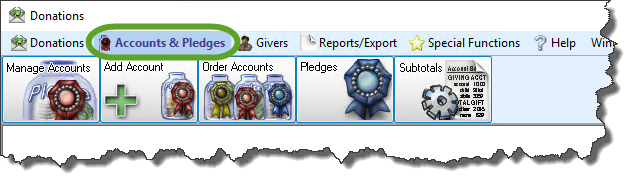
- From the menu options that appear underneath, click Pledges to enter the screen.

- Click the Campaign Pledges tab.
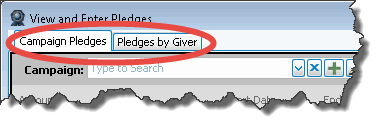
- Click the
 Add button.
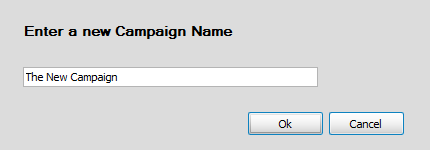
- Enter the new Campaign name and click the OK button.
- Automatically, a checkmark will be placed for you in the Use in distribution? (default) box.

This means that the money that the Givers are pledging toward this campaign will be calculated into the total donation amount. This takes place on the Enter Donations screen and is called the Giving Distribution which can also be adjusted manually.
If you remove the checkmark, the pledge amounts will not affect the way donations are automatically distributed between accounts when they are entered on the Enter Donations screen. - Account
Click the dropdown button and choose the account for the campaign.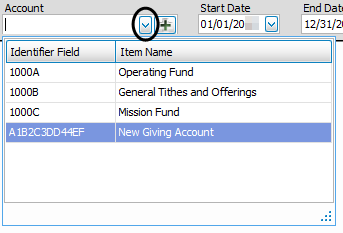
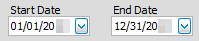
- Click the dropdown button of the Start Date box and select the date on which the campaign begins. Then click the dropdown button of the End Date box and select the date on which the campaign ends.
- Frequency (default)
If the majority of the people pledging towards this campaign set out to make the pledge at a common frequency, click the dropdown button of the box and choose that frequency.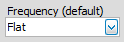
Choosing a default from this box means that when you Add Givers to a Campaign, the frequency for each Giver will already be filled in with whatever was initially selected in this box, though you can still change it if needed. If you are not sure, you can leave this box empty and move on to the next step. - Amount (default)
Enter an amount in the box if there is a standard amount that will apply towards most of the Givers of this campaign.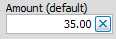
Choosing a default from this box means that when you Add Givers to a Campaign, the amount for each Giver will already be filled in with whatever was initially selected in this box. If you are not sure, leave this box as is and move on to the next step. - Add Givers
Click the button to begin to Add Givers to a Campaign.
The screen will automatically save each change as you go. And when you are finished, just close the View and Enter Pledges screen.
